Guide
How to use the trainer
The trainer is one screen: a wheel of the twelve notes, a strip that says how tense what you play is, a palette of chords and scales, and a fretboard or piano under them. These articles name each part and what it does — the same help the app opens on ?. Every screenshot is the app as it looks today.
Start here
The whole app is one screen. These first articles name its parts and walk a first session.
What this app is
A practice companion that hears what you play, shows the theory behind it, and keeps what you record.
Turn on Listen and play a chord on your instrument. The app names it, lights its notes on the wheel and on a fretboard or piano, and colours everything by how tense it sounds against your home key. Nothing is sent anywhere: the audio is analysed on your own device.
From there it is a trainer. The palette hands you chords and scales to try, a Suggested page says where a chord tends to go next, the metronome carries a speed trainer and a looper, and every Keep, recording and loop lands in a take library you can play back with its chord track.
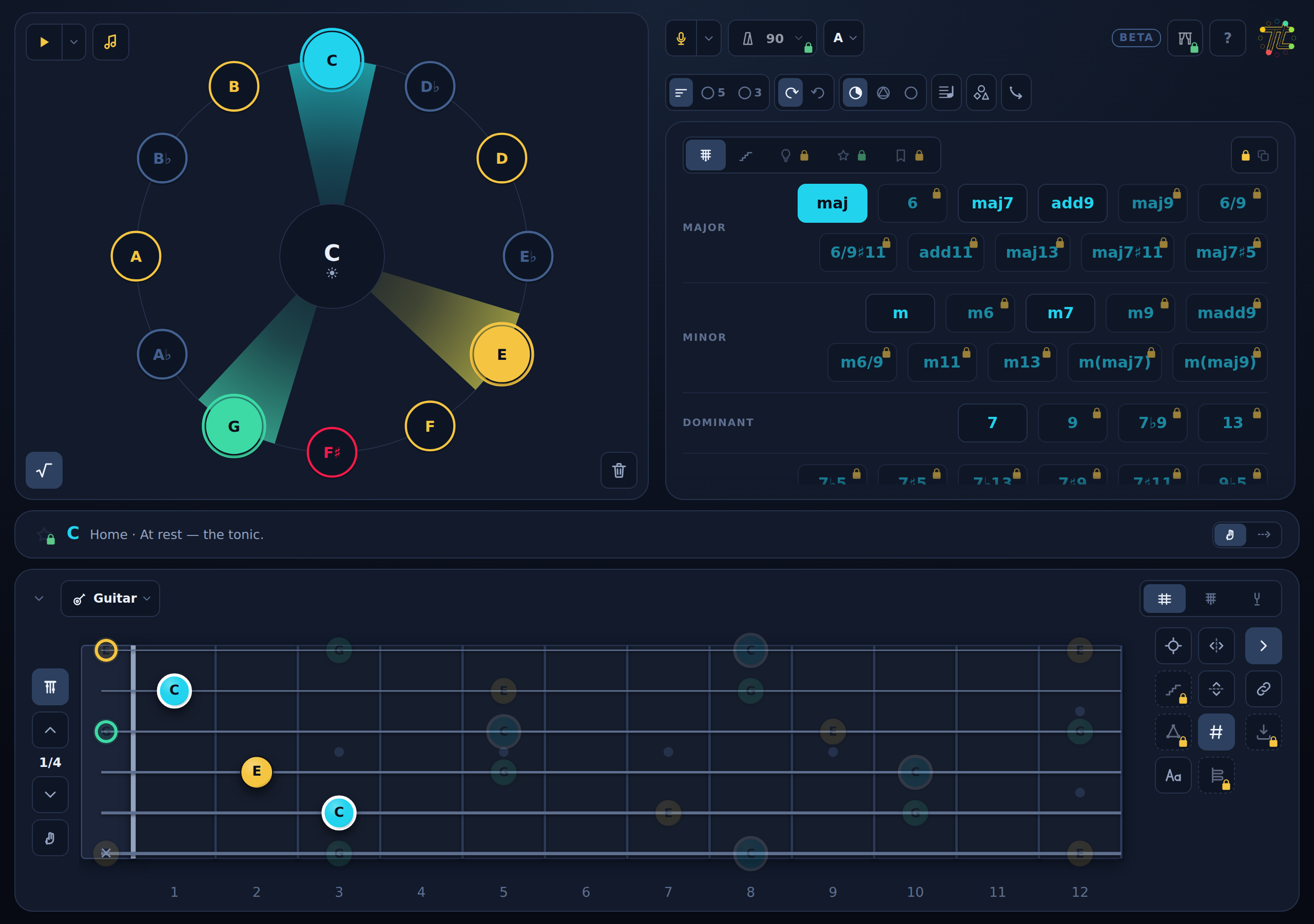
The screen
Top to bottom: the top bar, the wheel and its rail, the tension strip, and the instrument panel.
The top bar holds Listen, Takes, the metronome, the note names, help and your account. The wheel sits in the middle with the palette beside it, the strip under both names the chord in focus, and the instrument panel draws it on a fretboard or a piano. On a phone, a nav under the bar switches between the wheel, the palette and the instrument.
Every part reads the same selection: pick a chord anywhere and the wheel, the strip and the instrument all show it.
Your first five minutes
Set a key, hear a chord, play it back, then keep it.
- Press the centre of the wheel and pick a home key. The key's notes get a mark outside the ring, the tonic a cyan one.
- Open Chords in the palette and tap a chord. The wheel draws its shape, the strip names it, and the instrument shows a fingering. Play strums it.
- Turn on Listen and play the same chord. The strip names what it hears and the Played row starts logging your chords.
- Open Suggested. It lists where this chord tends to go and why. Tap one to hear the move.
- Star a chord you like. Favorites keeps it, at any root.
On a first visit the tension strip walks you through three of these: tap a chord, play it, turn on Listen.

Note names
Letters, Nashville numbers or roman numerals, app-wide.
The note-name menu sits in the top bar right of the metronome. What you pick there drives the wheel's labels, the chord names, the palette, the boards and the mic readout at once.
- Letter names: C, E♭, G.
- Nashville numbers: a chord's degree in the home key, 2m⁷ 5⁷ 1.
- Roman numerals: the same degrees as ii⁷ V⁷ I.
Numerals are lead-sheet style: lower case for minor, ♭III ♭VI ♭VII from the major scale, I⁶ an added sixth, a bass after a slash: I/3.
In either number mode a single note reads as its place in the chord: 1, ♭3, 5, ♭7 above the root, on the wheel and the boards alike. Numerals name chords, never notes.
A guest reads letters. The two number modes come with an account.
Tooltips, shortcuts and this sheet
Hover any control for its name; press ? for this sheet.
Every button names itself on hover, and a locked control says which tier it needs. Once you know your way around, switch them off in your account's profile bubble (the Hover tooltips square).
This sheet holds this help, the Shortcuts tab, and the Terms and Privacy. Every shortcut can be remapped: click its keycap on the Shortcuts tab and press the key you want. On a touch-only device the Shortcuts tab is not shown.
The arrows are the transport everywhere: left and right change the tempo, up and down the click volume, and holding Alt moves in steps of five. A focused widget that needs arrows of its own, like a slider, keeps them.
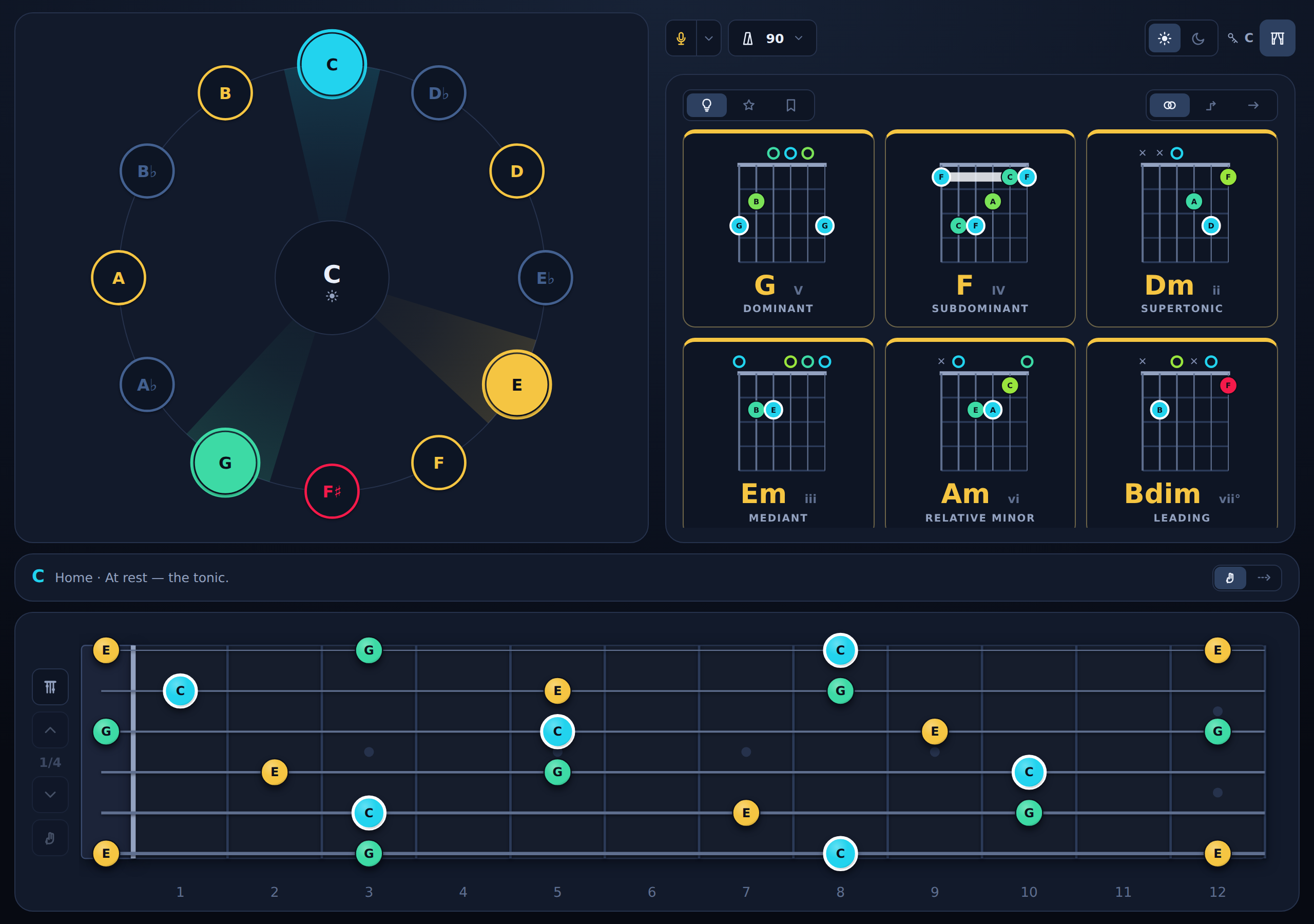
Perform mode
One toolbar, big chord tiles, nothing else on screen.
Perform hides the palette and the chrome and replaces the Suggested rail with six to eight large tiles: the likely next moves from the chord you are on, each with its fingering as big as the box allows. Click a tile to move there; press and hold to preview it.
The tiles have a source, switched in the panel's own header: Suggestions, your Favorites, or a shelf of them. Perform comes with an account, and leaving it is never locked.
Install as an app
Put the trainer on your home screen or dock.
On desktop Chrome and Edge an Install square appears in the top bar left of the help button. On a phone the offer sits in your account popover; iPhone and iPad install through the browser's share sheet, and the popover says so. Installed, it opens in its own window without the browser's bars.
The wheel
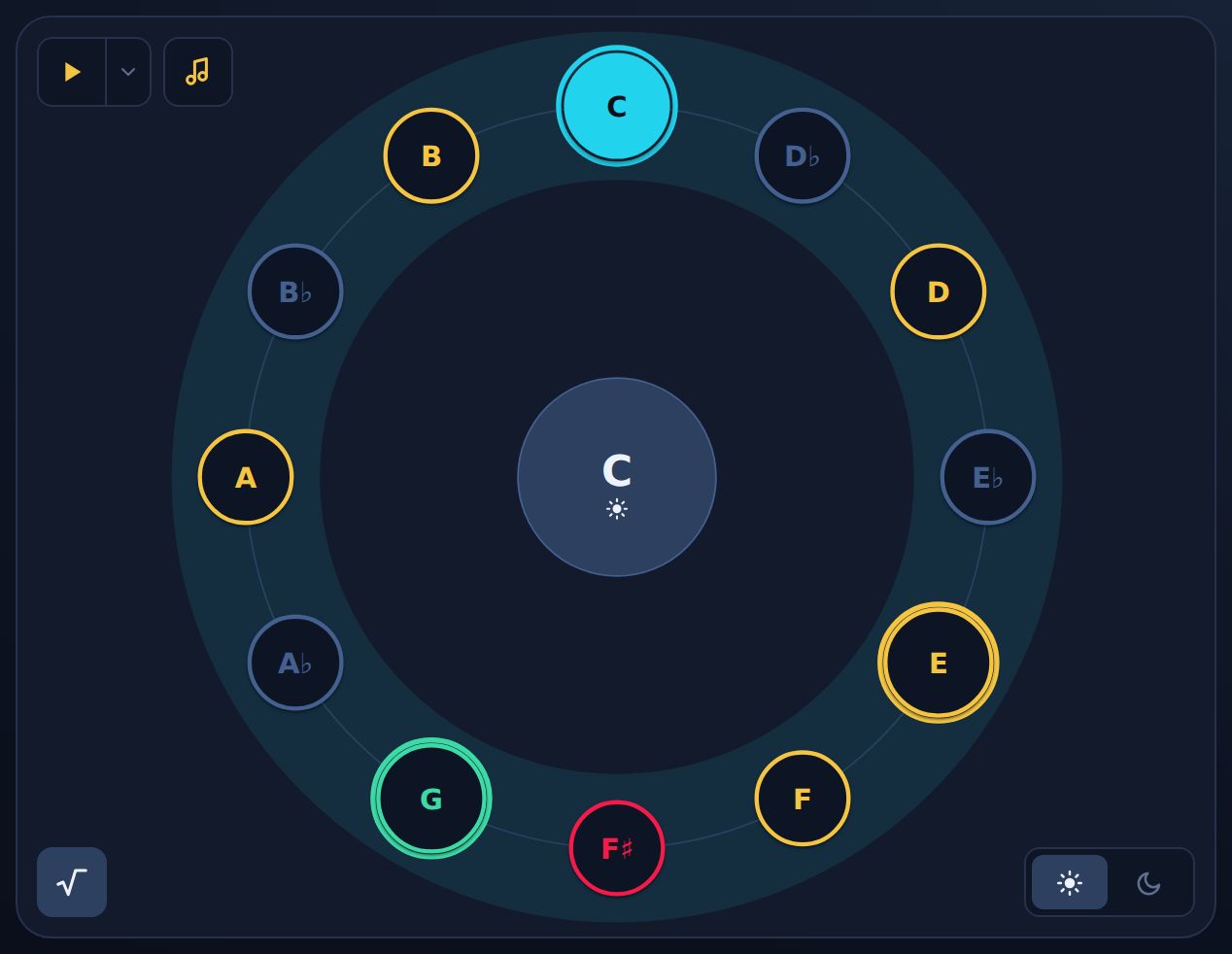
The circle in the middle is the twelve notes, with the chord's root at the top; in the Intervals layout the distance around it is the interval between them.
Reading the wheel
Twelve notes, the chord's root at twelve o'clock, every note coloured by its tension against it.
Each node is an interval above the root: 1, ♭3, 5 in the number modes. Its colour says how far from rest it sits: cool colours are stable, hot ones want to resolve. A chord is a shape between its notes, filled with its overall tension. A new root turns the wheel, so a minor seventh chord is the same shape on any root.
The home key sits in the hub. To see which notes are in its scale, turn tension colours off: the quiet palette paints them gold.
Click a node to add or drop that note. Click a shape to hear it. The nodes are keyboard reachable too: Tab walks them, Enter selects, and the walked node draws a thicker focus ring.
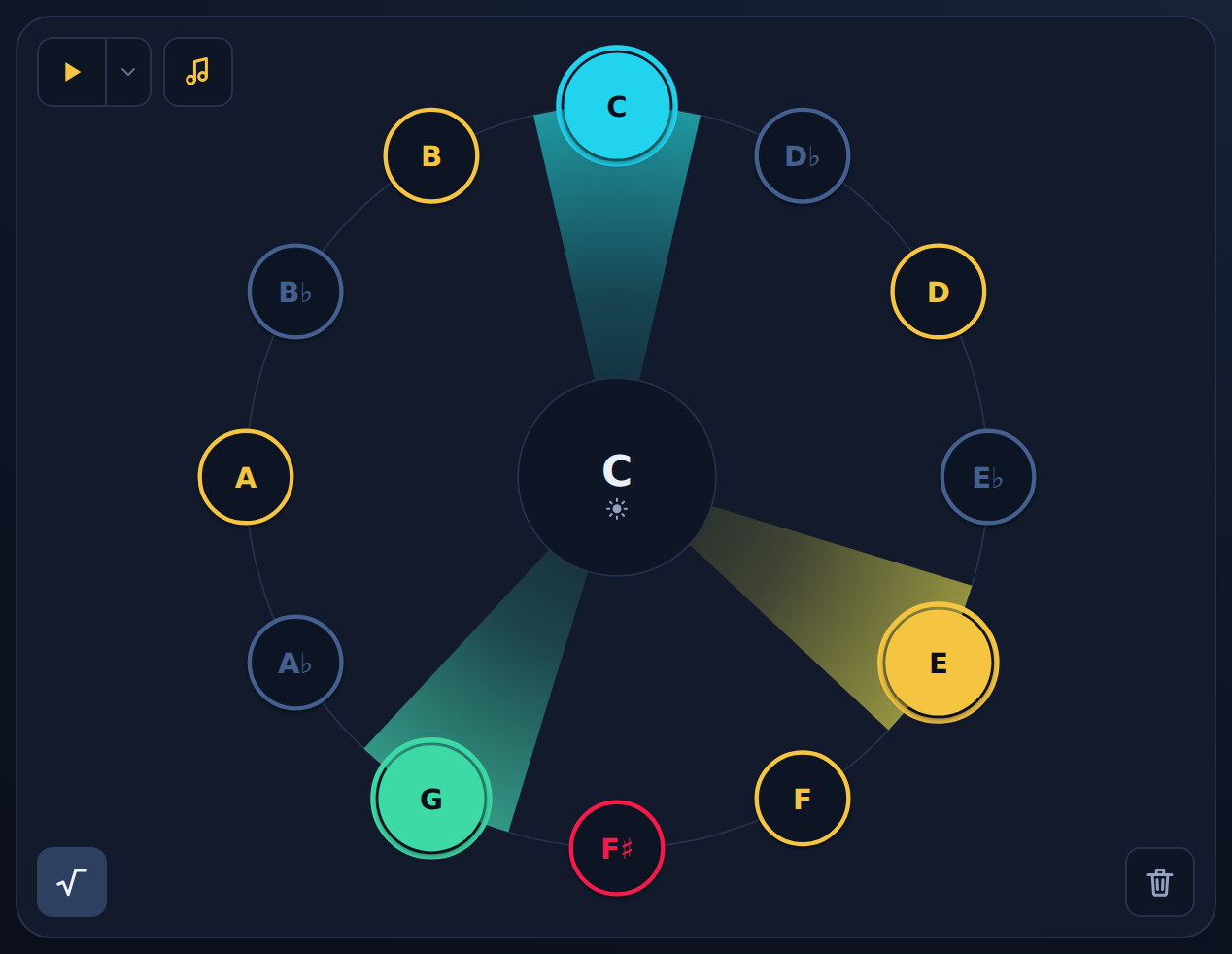
The view menu
Pick the wheel's layout and what its centre draws.
The view menu, in the rail's menu row, picks the layout. Intervals puts the twelve notes in chromatic order, so a shape's width is its interval. Circle of 5ths puts neighbouring keys side by side. Stacked 3rds walks the key's notes in thirds, so a chord's notes sit together, and the five outside the key follow. Clockwise or Counterclockwise sets the reading direction.
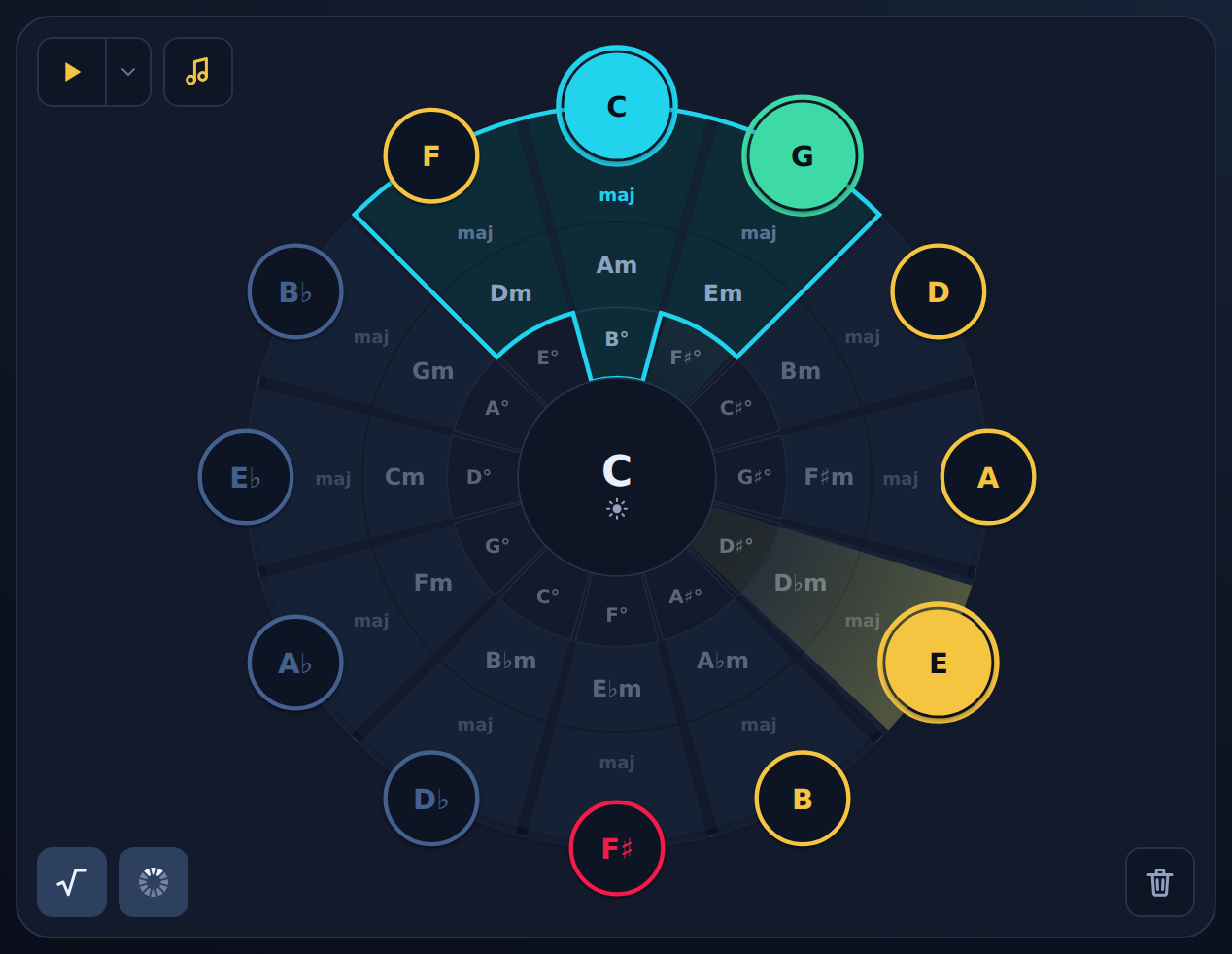
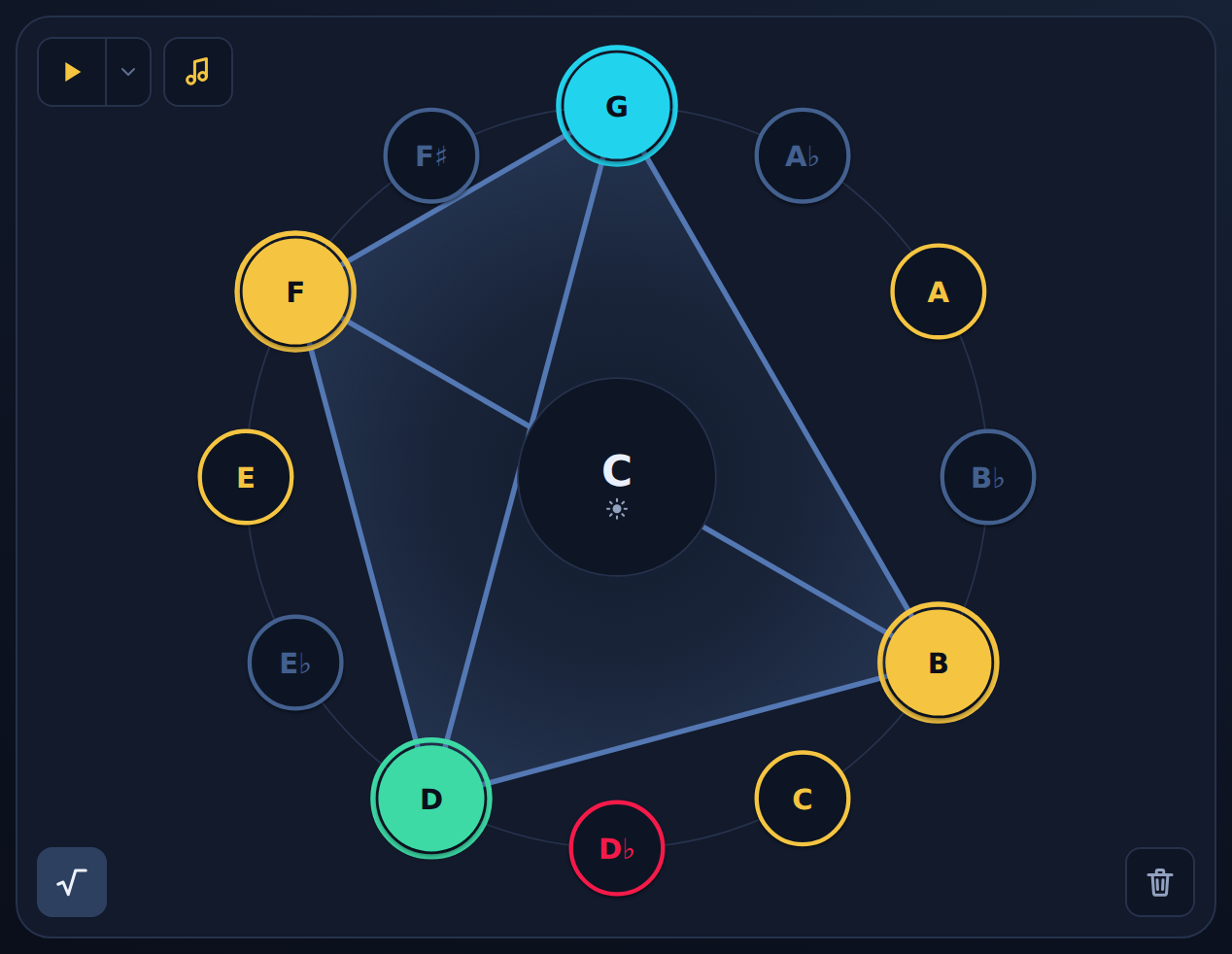
The same menu picks the centre. Colour fills paints the shape with the chord's tension. Tension lines draws each pair of notes in that pair's own colour, so the tritone inside a dominant chord shows as the hot line it is. Shape notes by interval gives each interval a marker shape as well as a colour.
Next moves on the wheel
Arrows from the chord you are on to where it tends to go.
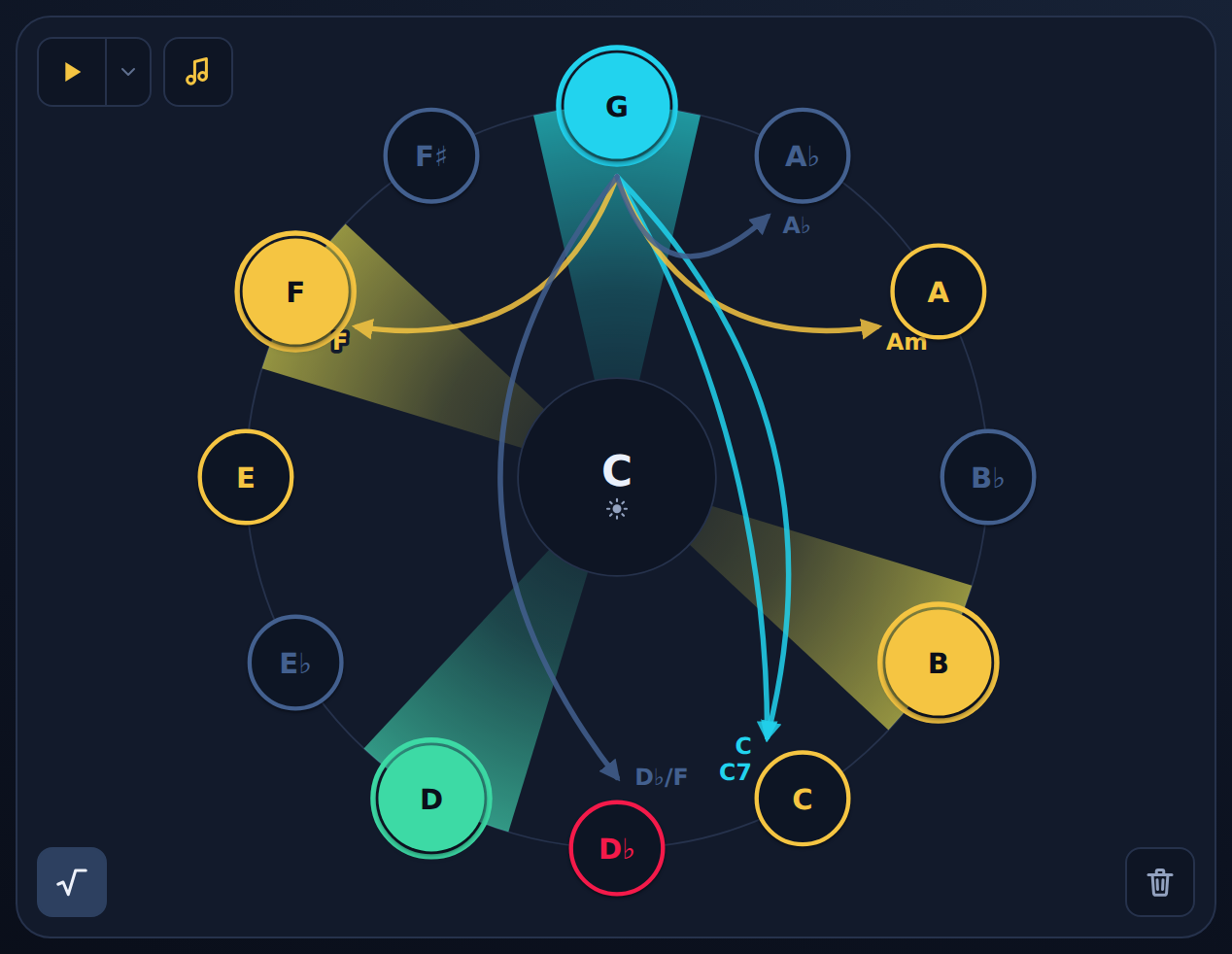
Turn on Next moves in the view menu. Each move from the current chord draws as an arrow from its root to the root it lands on, coloured like the chord it lands on. They are the Suggested page's moves, laid where the notes are.
Hover an arrow to see its chord on the ring; tap it to play it and land there.
The staff over the wheel
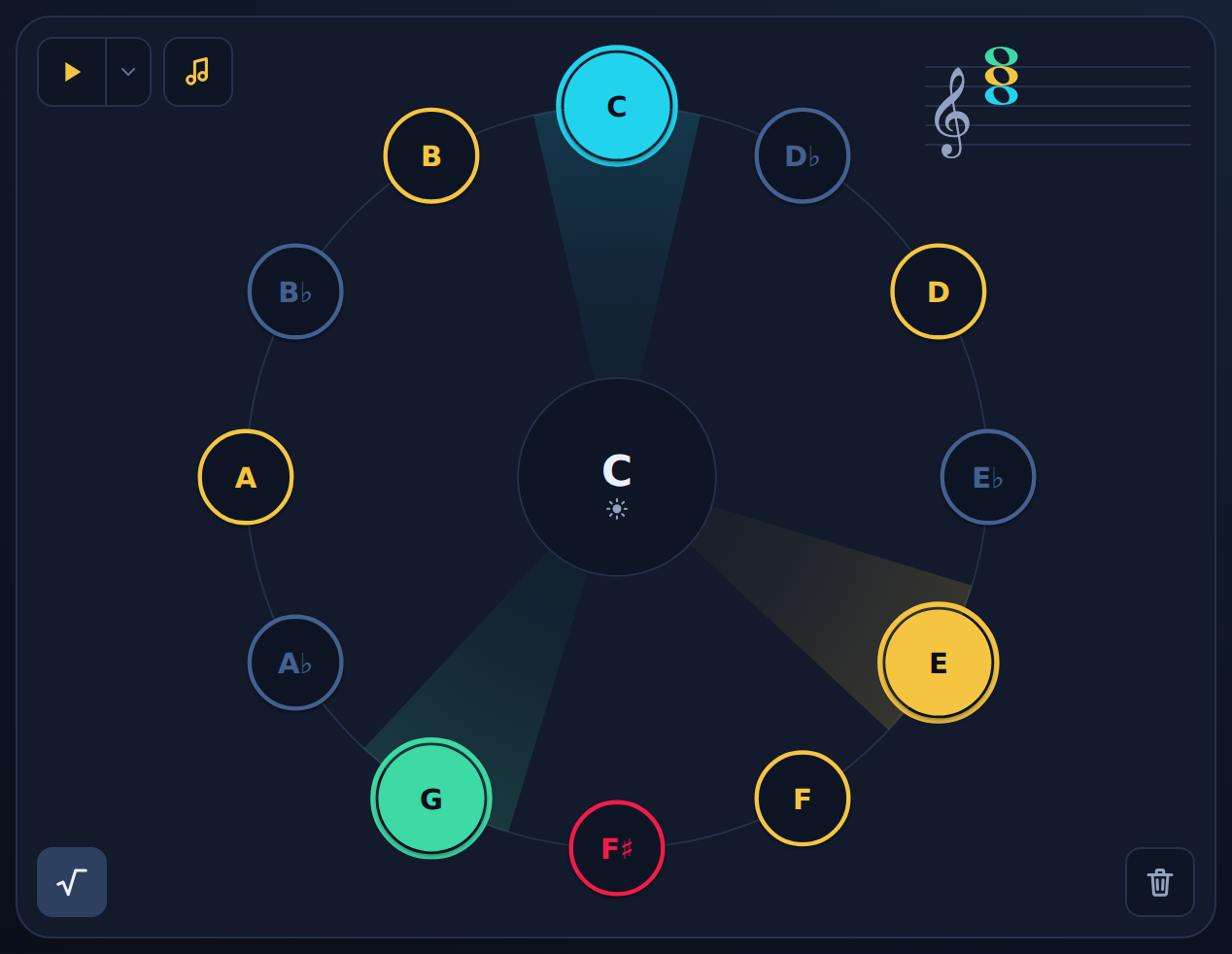
A small treble staff in the wheel's corner engraves the chord in focus.
Turn it on in the view menu. It draws the home key's signature and the built chord as noteheads in the same interval colours the wheel uses, so the numbers on the wheel and the dots on the staff are visibly the same notes.
The wheel's corner
Play strums the shape, Drone holds its root, the lock keeps it, the trash clears it.
The Play split in the wheel's corner strums the current chord, and its caret opens the sound menu: the playback sounds, then the number row. Drone holds the root under everything you do, and the trash clears the selection.
With the root locked, a click on another node changes the chord's other notes but never drops the root, and clearing leaves the root in place. The lock also sits on the instrument rail.
Setting the home key
The hub is the key: press it to pick a new one.
Press the centre of the wheel and the ring becomes a key picker: click any node to make it the tonic, and the corner switch makes it major or minor. Esc leaves. Hold the centre instead and it strums whatever is lit.
On the circle of fifths, the keys button beside the lock adds an outer band of the twenty-four keys; click a cell to make it the home key.
A key change never turns the wheel: the chord names re-read in the new key, and with tension colours off the gold in-key notes move.
In key is a major key's seven notes, or a minor key's natural minor plus its raised 7th: in minor the major V counts, a major IV does not.
The number row as an instrument
Your device's keyboard can be a twelve-key instrument.
Turn on the keyboard square at the foot of the sound menu, behind Play's caret; it plays in the sound picked above it. Notes makes the keys 1 through = one octave that sounds while held and feeds the chord naming; comma and period move it down and up an octave.
Chords makes 1 through 8 chord pads: the home key's seven chords, then its dominant seventh. A press is the same as picking the chord.
Tension and keys
Tension is how much a sound wants to move. These articles explain the colours and the words the app uses for it.
What tension is
Every note is measured against the chord's root, and its colour says how hard it pulls.
- At rest: the root, then the 5th.
- Settled colour: the major 3rd, the major 6th, the minor 3rd, the minor 6th.
- Leaning: the 4th, the major 2nd, the minor 7th.
- Pulling hard: the major 7th, the minor 2nd and the tritone, the most restless of all.
A note has no tension of its own, only against a root. B is the major 7th of C, straining up a half step to land on C, but over E it is the 5th and completely stable. Change the root and every colour is re-measured.
A chord adds its notes' pulls together. With tension lines on, the wheel draws each pair of notes in that pair's colour and fills the shape with the chord's overall tension, and the knob on the tension strip shows how tense the chord is. A tritone inside a chord, as in a dominant 7th, is what makes it lean toward the next one.
The overtone ladder
The ladder shows why the 5th is calm and the minor 2nd is not, from the root's own overtones.
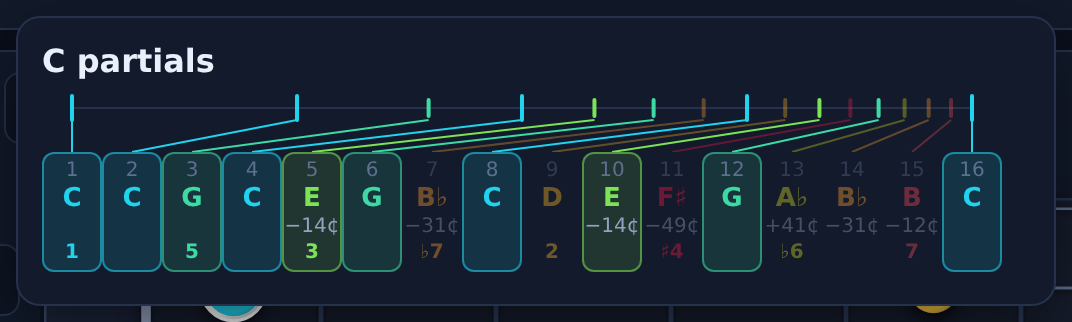
A played note is not one pitch. A string or a reed vibrates at its root and, more quietly, at two, three, four times that speed and on up: those are its partials. Press the chord's name to open them for its root as a ladder, the first sixteen. The octaves take equal room, so the higher partials crowd together, as they do in the sound itself. Hover a rung, or press and hold it, to hear that partial alone.
Read the ladder from the left. Partial 2 is the octave, 3 the 5th, 5 the major 3rd, 7 the minor 7th, 9 the major 2nd, 11 the tritone, 13 the minor 6th, 15 the major 7th. The small symbol under a rung marks where an interval first appears. The rungs your chord uses are solid and the rest are dim, so a major triad lights 1, 3 and 5 and every octave of them, and C7 adds 7.
The ladder is the maths, and the ear does not follow it everywhere. The 4th appears only at partial 21, off the ladder, yet alone it is calm: it is the 5th turned upside down. Over a root it leans, wanting to fall to the 3rd. The tritone shows early at 11, but that partial sits a quarter tone from the keyboard's, so it does not count as a match. A number beside a name says how many cents a partial sits from the key you would play.
A chord's job in a key
A key is seven notes on a home note, and inside it every chord has a job.
I is home, IV steps gently away, V builds tension that wants to land back on I, and vi is home's darker twin. The tension strip names the job of the chord in focus, and Suggested lists where to go next and why.
The same chord changes job with the key: G is home in G but the pull back home in C. Playing in a key is going out to the tense chords and coming home again. With Listen on, the strip's track draws that rise and release as you play.
The tension strip
The strip under the wheel names the chord in focus and shows how tense it is.
On the left: the star, the chord's name in its tension colour, its other readings, and what it does in the home key. On the right: the release-to-tension track, with a knob at the chord's tension.
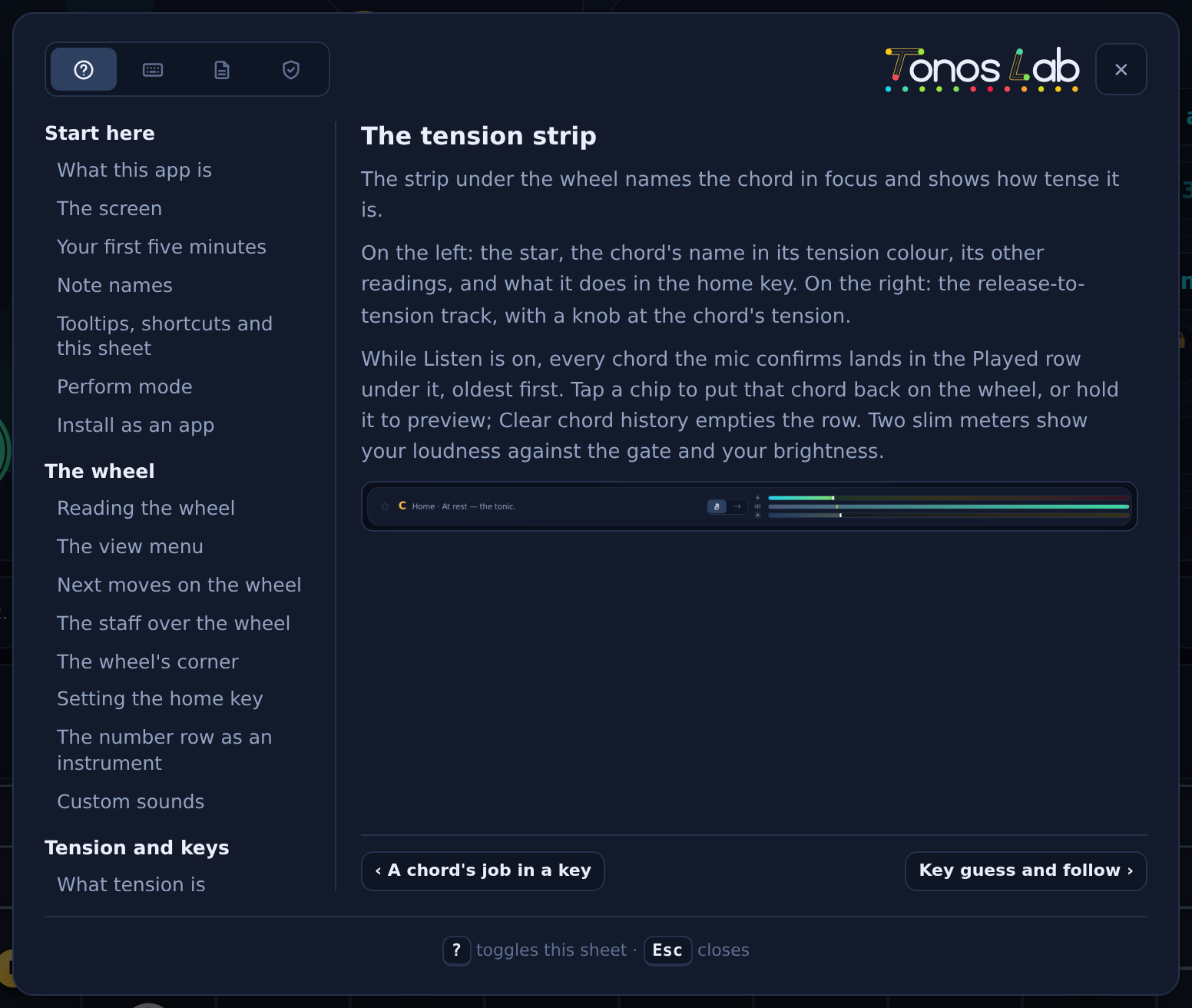
While Listen is on, every chord the mic confirms lands in the Played row under it, oldest first. Tap a chip to put that chord back on the wheel, or hold it to preview; Clear chord history empties the row. Two slim meters show your loudness against the gate and your brightness.

Key guess and follow
The strip keeps a running guess at the key you are playing in.
From the last chords it heard, the strip shows its guess as a muted ghost beside the readout whenever it differs from the home key, with a Make home key button beside it. Adopt it and the whole screen follows.
The Manual and Follow seg decides whether that happens by itself: Manual keeps the home key where you put it, Follow re-keys the wheel as the guess changes.
The quiet colour palette
Swap the tension colours for a plain palette.
The Tension colours and bars square in your account's profile bubble switches the app between the per-interval tension colours and a quieter palette: light blue is the root, gold is in the key, dark blue is outside it, and the 5th and the tritone keep their green and red. Off also folds the strip's bars. A guest sees the quiet palette; an account is what turns tension colours on.
Listen
Listen turns on the microphone or a line-in. What you play is detected live and lights up the wheel, the boards and the strip.
Turning Listen on
Press Listen, allow the microphone, and play.
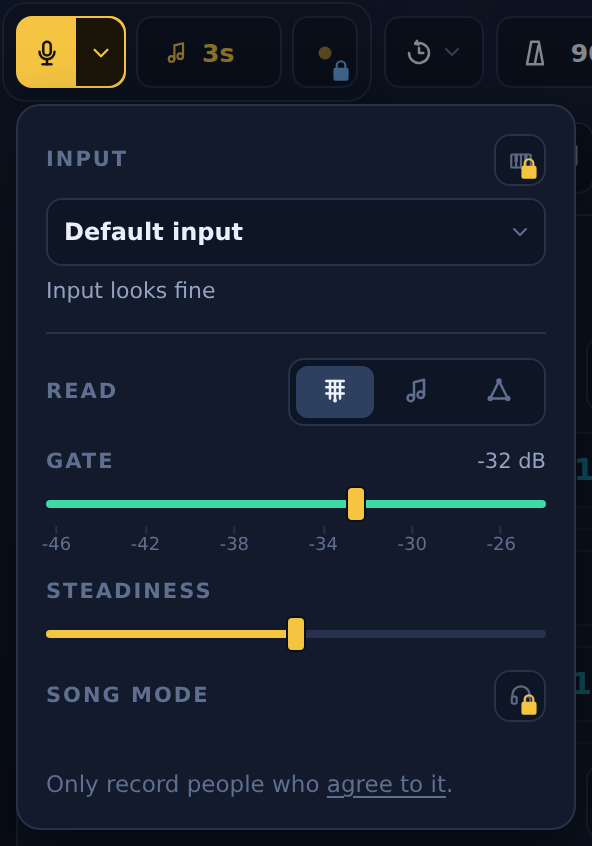
The Listen split in the top bar starts the microphone; its caret opens the input popover, where you pick the input. The Mic check line there says what is wrong when detection struggles: processing left on, too quiet, or clipping. The Noise gate slider is the quietest sound the app listens to: left catches soft playing, right ignores room noise.
The audio never leaves your device. Nothing is sent anywhere unless you record a take and keep it in the cloud. Signed out, the strip says Chord heard when you play one; sign in to see its name.
Channels
On a multi-channel interface, point detection and recording at different channels.
Once Listen is on with an interface that has more than two channels, three pickers appear: Detection channel, Recording channels and What Keep saves. Point detection at a clean or DI channel and recording at your processed pair, because distortion floods detection with harmonics. On a Line 6 HX Stomp the dry DI is channels 5 and 6 and the processed sound 1 and 2.
Chords, Notes or Spell
Choose what the microphone reads: chords, single notes, or a chord spelled out.
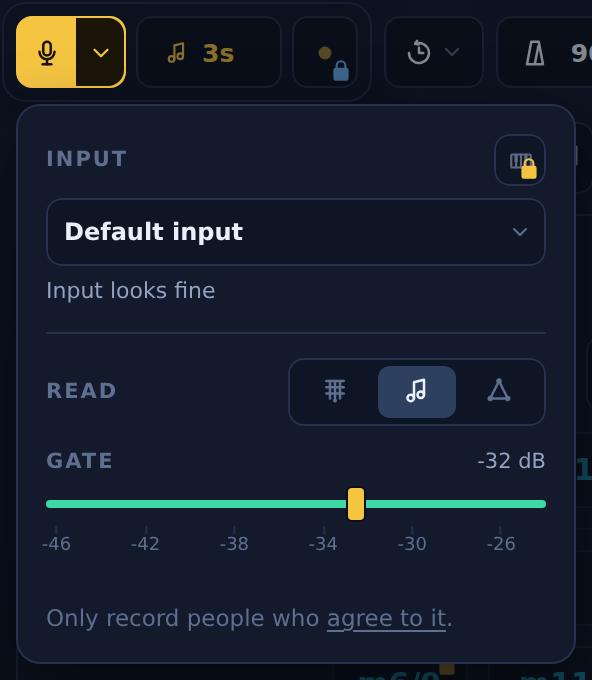
Read in the input popover picks it; it needs Listen on. Chords is the default: strum and the chord is named, selected and logged in Played.
Notes reads one note at a time and lights it on the wheel against the chord already there, with its cents. The chord never changes, so sing or solo over it and see which note makes which pull. Recent notes fade behind it.
Spell holds each note you settle on, by voice or one string at a time: hum C, then E, then G, and the three name C major together. Go quiet for a second and they are let go.
Steadiness and Song mode tune Chords only. The tuner has the microphone to itself while it is open.
Chords, scales and favorites
The palette beside the wheel is where chords and scales come from.
Chord and scale chips
A chip is a chord at the current root; tap it to hear it, hold it to preview.
A chip applies its chord at whatever root the wheel is on, so the same chip is a different chord in every key. Press and hold to hear the shape without committing. A chip's tooltip carries its mood and its other names.
The Polychords family writes a chord as one triad stacked over another: D over C7 is C13♯11. When the notes you play match such a stack, the tension strip offers the same reading.

Favorites
Star a chord and it is yours at any root.
The star on the tension strip favorites the chord in focus; the Favorites page lists them. A favorite applies at the current root, so a starred minor 9th is a minor 9th in every key. Favoriting comes with an account.
Instrument
The lower panel is your instrument: a fretboard or a piano showing the chord or scale in focus, with an options rail beside it.
Picking an instrument
Strings or piano, from the panel's header.
The instrument button in the panel header switches between Strings and Piano. Strings is one instrument with families: guitar, bass, ukulele and mandolin are tunings of it, picked in the tuner. The header also holds the page seg, Fretboard, Chord shapes and Tuner, and the fold that collapses the body.
A phone shows the panel as its own tab, always open.
The fretboard
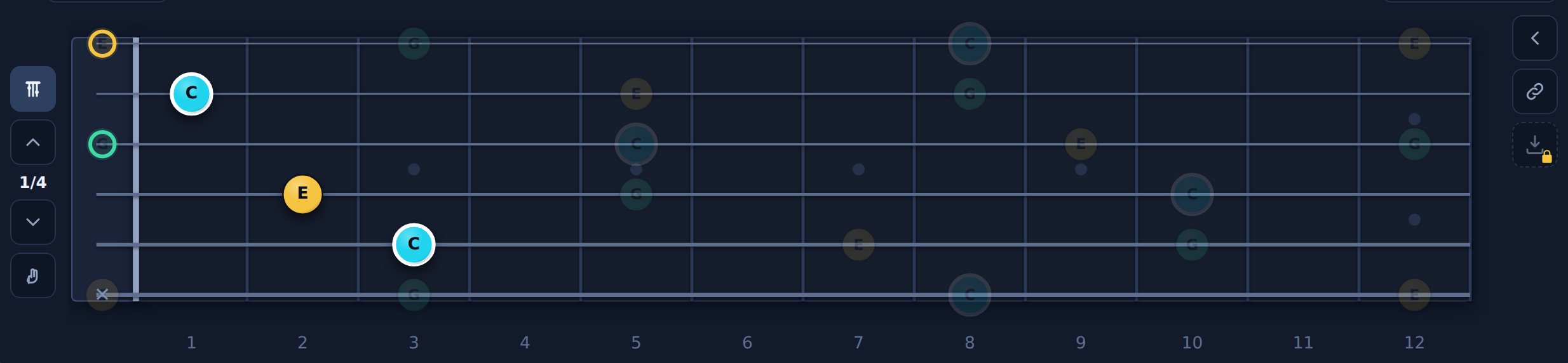
The neck, with the chord's notes as coloured dots and a voicing you can walk.
Every note of the chord or scale is a dot in its interval colour, the root ringed. Chord shape on the rail turns on voicings: a fingering drawn on the neck, with Previous voicing and Next voicing walking it up and down. The rail also draws finger numbers and note names, and shows fret numbers along the edge.
Shift plus the arrows walks the cells from the keyboard, by string and by fret. On a phone, Turn labels on the rail turns every label on the neck, so the board reads with the phone held sideways, top to the right.
The options rail
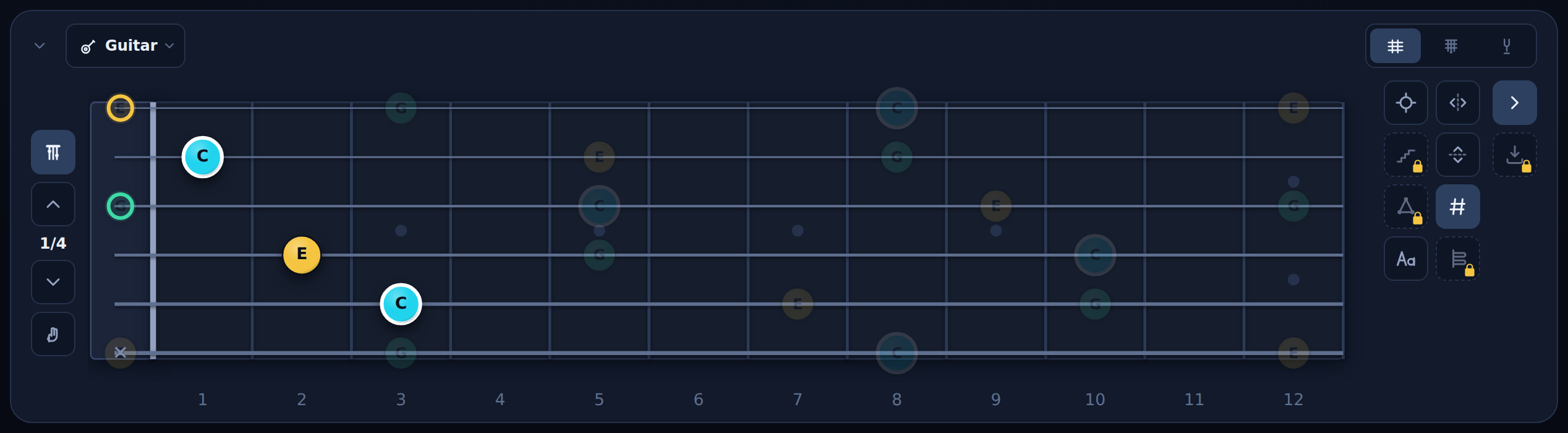
Everything that changes what the board shows, in one rail beside it.
The left group is what the board draws on top of the notes: chord shapes, focus, pentatonic boxes, triads and note names. The right group is how the board is set up: left-handed, string order, fret numbers and the capo. Export and Copy link sit under the collapse arrow. A control that does not apply to the current page is hidden.
Focus
Spotlight one stretch of the neck or the keys.
Press Focus on the rail, then drag a box on the neck or across the piano's keys. The rest of the board dims, the export crops to the box, and the next press of Focus clears it. F is the shortcut.
Chord shapes
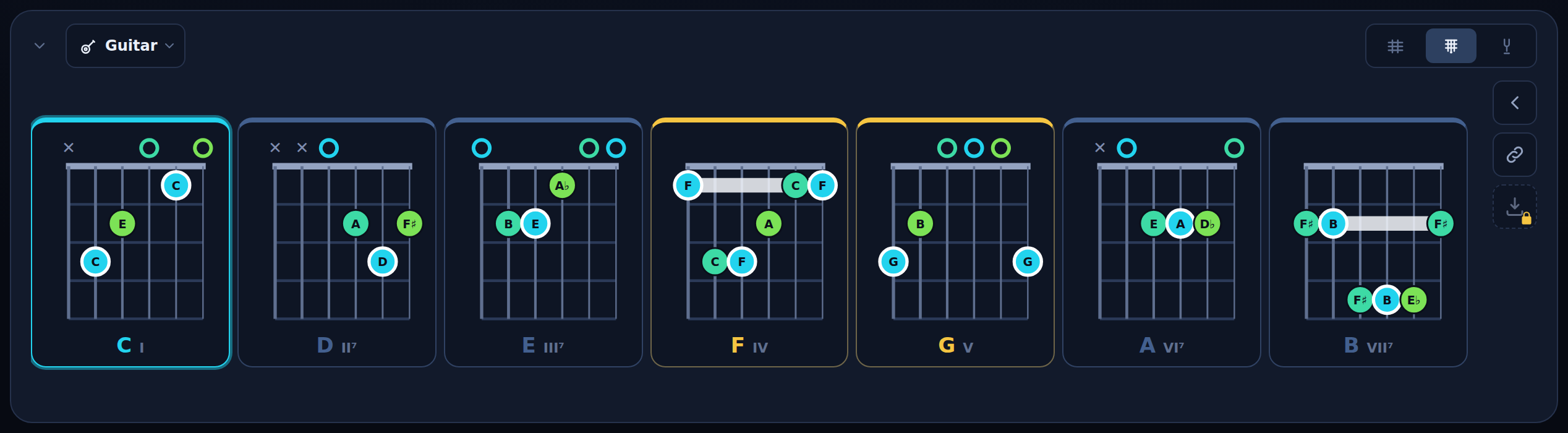
First-position diagrams for the chord in focus, one row, no scrolling.
The Chord shapes page draws open-chord diagrams from the selected chord. The rail's vertical seg picks the row's source: Same chord at every root, Chords of the home key, or Where this chord tends to go. Tap a cell to select it and strum it. With a capo on, each diagram shows the shape behind it. The page is offered while there is a chord to draw.
The piano
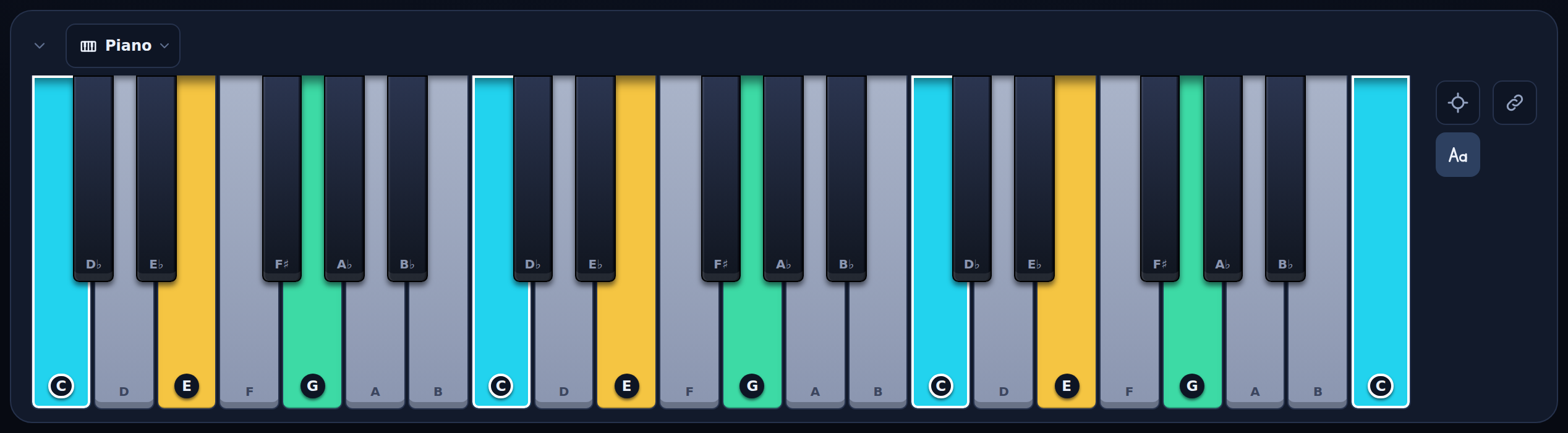
Three octaves of keys, the chord's notes lit in their interval colours.
Tap a key to add or drop that note; press and hold a key to preview the chord with that note added. Note names on the rail labels every key. Focus works here too: drag across the keys to spotlight a range. A phone shows two octaves, stood on end so each key is thumb-sized; Turn labels on the rail turns the names so the keys read with the phone held sideways, top to the right.
Links that open a chord
Copy a link that opens the app on the chord you are looking at.
Copy link to this chord, beside Export on the rail, copies a link that holds the key, the chord, the wheel layout and the instrument. Never a take, never a recording, nothing you have saved.
Pasted into a chat, the link shows the chord and its key, not just the app's name. Whoever opens it sees the app on that chord, in that key. A chord type their account does not include shows its lock instead. Nothing plays until they tap, and nothing is saved until they change something themselves.
The guides use the same links: their buttons, and every key and chord in the circle of fifths table, open the app where the page leaves off.

Metronome, speed trainer and looper
Set a tempo and start the click. The metronome comes with an account, and it carries two practice sections, the speed trainer and the looper.
The metronome
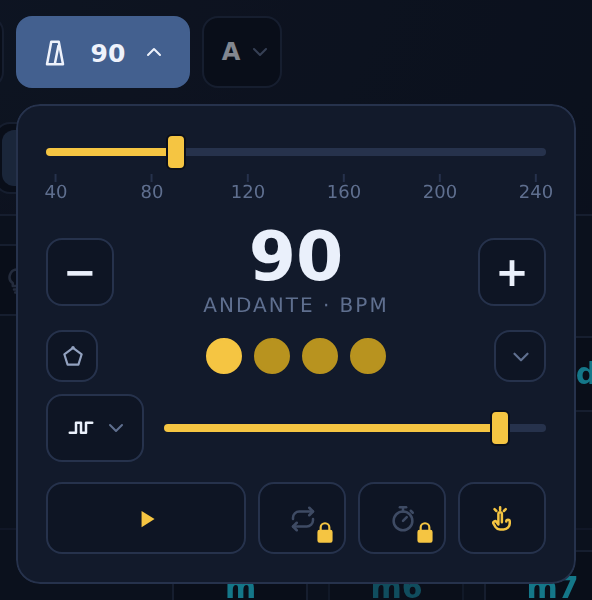
Tempo, tap, volume, sound, accents and time signature, in one dropdown.
Open it from the top bar. Start and Stop are the transport, Space too; set the tempo with Slower and Faster or with Tap tempo. The sound, swing and time signature sit under the tempo. Press and hold the top-bar button to start or stop it without opening the dropdown.
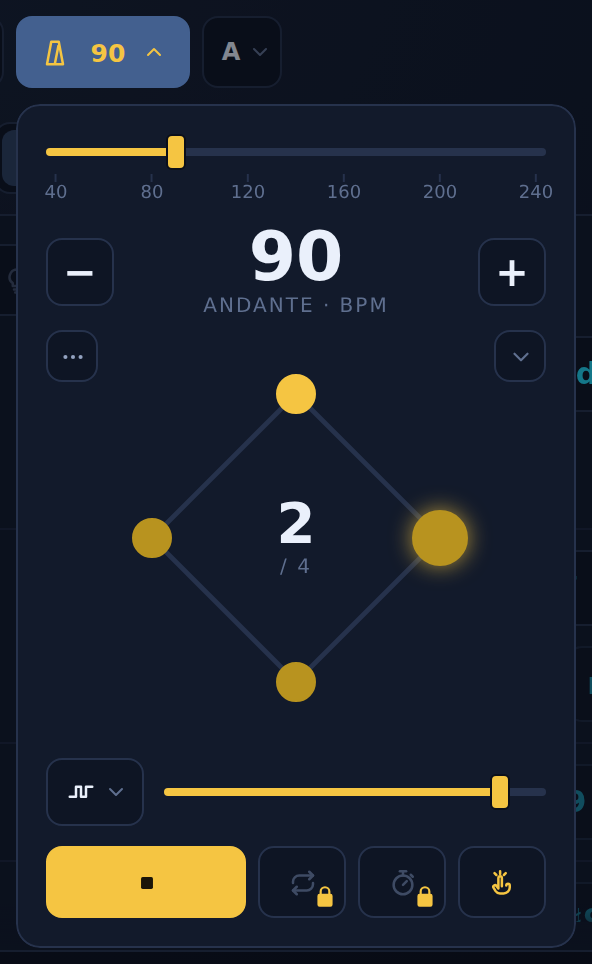
The beat row has two views: dots, or a polygon whose corners are the beats, with the click walking its edges. Show beat settings under it sets each beat to Muted, Soft, Normal or Accent.
Bars
One bar count at a time, for the loop or the speed trainer.
The bars bubble holds the loop's length and the trainer's step interval. They are not the same number: the loop's is how much playing the loop holds, the trainer's is how often the tempo steps. With both sections armed, a glyph toggle on the left picks which one the seg edits.
Takes
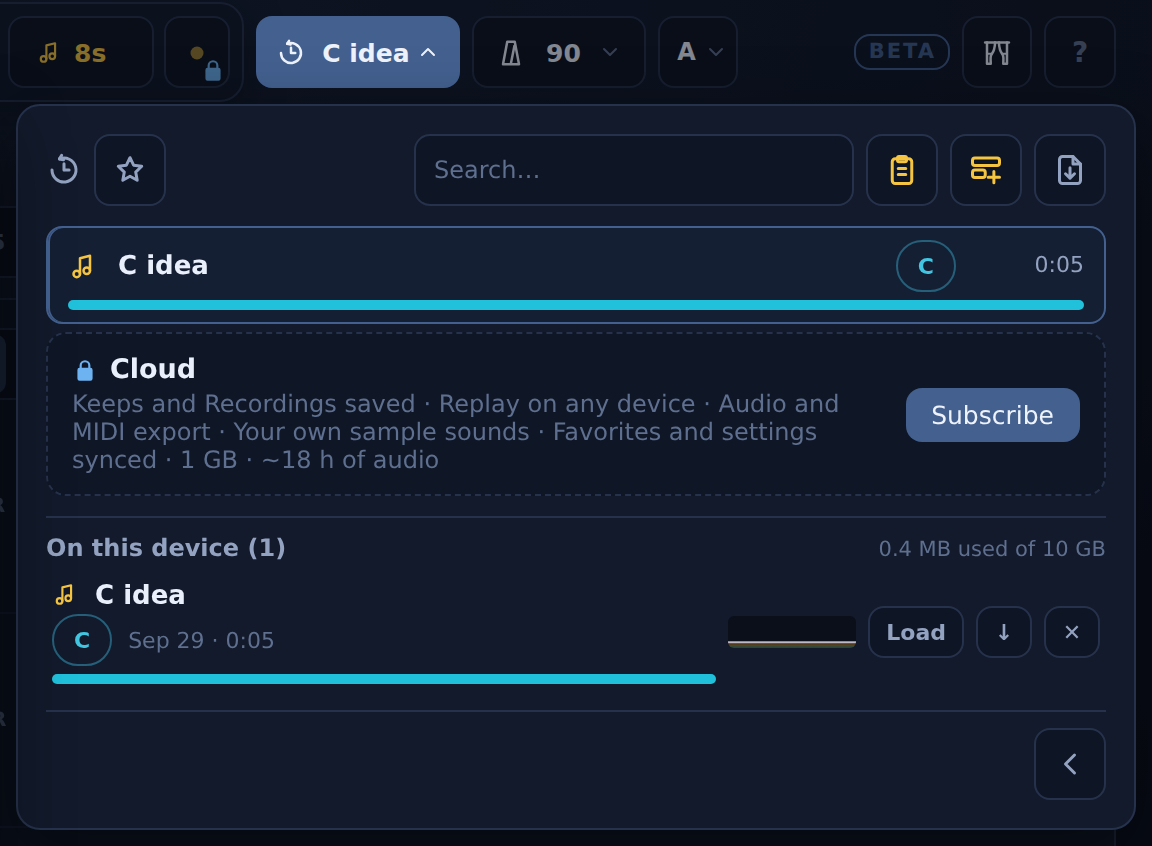
Anything you capture lands in Takes: Keeps grabbed while listening, recordings you started yourself, and loops from the looper.
What lands in Takes
Keeps, recordings and loops, with a chord track each.
Takes in the top bar opens the library. Every take carries the chords the app heard while it was captured, so a row shows its chord pills and a tension sparkline before you open it. The filters at the top narrow the list to Keeps, Recordings or Loops, Starred only keeps the starred, and Search matches a name, a note or a chord.
Organising takes
Name, note, star and file your takes.
The name on a row is an inline rename, and Add a note keeps notes on the take. The star marks a take on this device. New folder creates a folder, and dragging a folder's name onto another reorders them. All lists every take and opens folded: drag a take from All onto a folder to file it, or back onto All to unfile it. Deleting a folder keeps its takes. Duplicate copies the open take, so you can trim the copy and keep the original.
Delete asks you to type the take's first letters before it goes.
Playback
The detail view plays the take with its chord track under the wheel.
Play and Pause drive it, Space too. Drag the scrub slider to seek, and drag away from it for finer scrubbing. As it plays, the wheel, the strip and the board follow the chord track.
Drop marker adds a marker at the playhead, the period key too. Previous marker and Next marker jump between them, and a double-click on a marker gives it a note. The notes row is the take's general notes, separate from the markers.
The graph rows
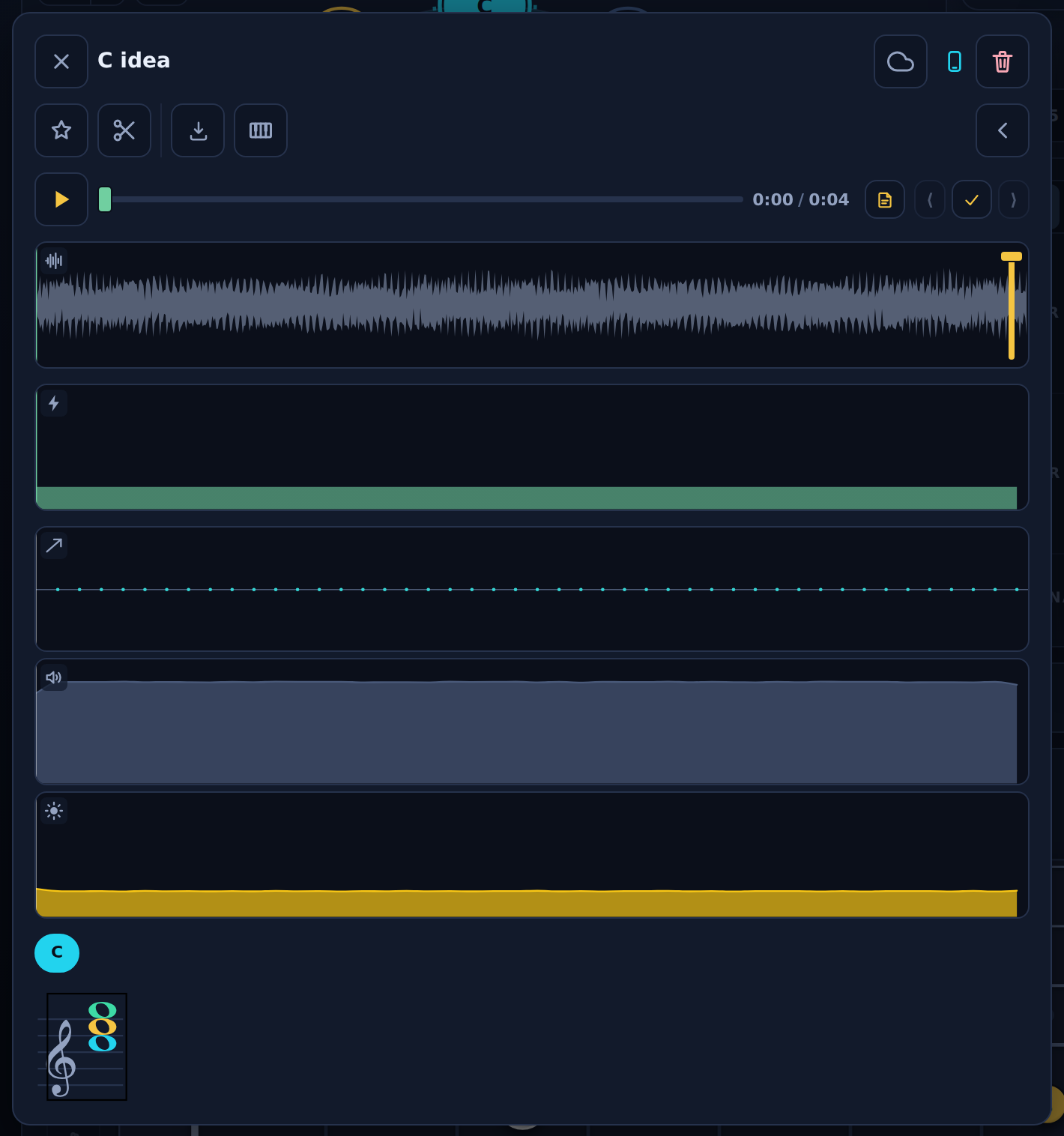
Dynamics, brightness, harmony, resolution, timing, melody, chords, notation, waveform.
Each row is a switch in the player's head. Dynamics, Brightness and Harmony read the take's loudness, tone and key. Resolution draws builds above and releases below; Timing draws early above and late below the click. Melody reads a sung take's notes. The chord lane is the track, and holding a chip loops that chord; the notation lane engraves it.
Trim
Cut a take to the part that matters.
Trim take opens two handles over the waveform. Drag them to the range you want to keep and press Cut to the handles.
A take recorded with the click running snaps its handles to its bar lines; hold Alt while you drag to slip between them.
Importing audio
Import in the takes library head brings in an MP3, WAV, M4A, OGG or FLAC file as a take.
Press Import, then Choose file. The file is decoded on your device, stored here and never uploaded, and its chords are read the way every take's are. It opens in the take player like any recording. Up to fifteen minutes.
Account and your data
An account is where your settings, favorites and takes live. These articles say what each tier holds and what follows you.
Your data and privacy
Product news, a copy of your data, closing the account, and the full terms.
The profile bubble carries Product news by email, an opt-in switch you can turn off at any time, and Download my data, which hands you everything the account holds. To delete the account, email the address in the Privacy tab; there is no in-app delete.
The Terms and Privacy tabs of this sheet are the full documents, each opening with a short version in plain words. Every Terms or Privacy link in the app opens the same tab in place.
Free to use in the browser; nothing to install.